Change Data Capture with Debezium and Postgres using Docker Compose
Spinning up a full CDC pipeline - Postgres, Debezium, and Kafka - end-to-end with Docker Compose.
· #cdc #debezium #postgres #docker
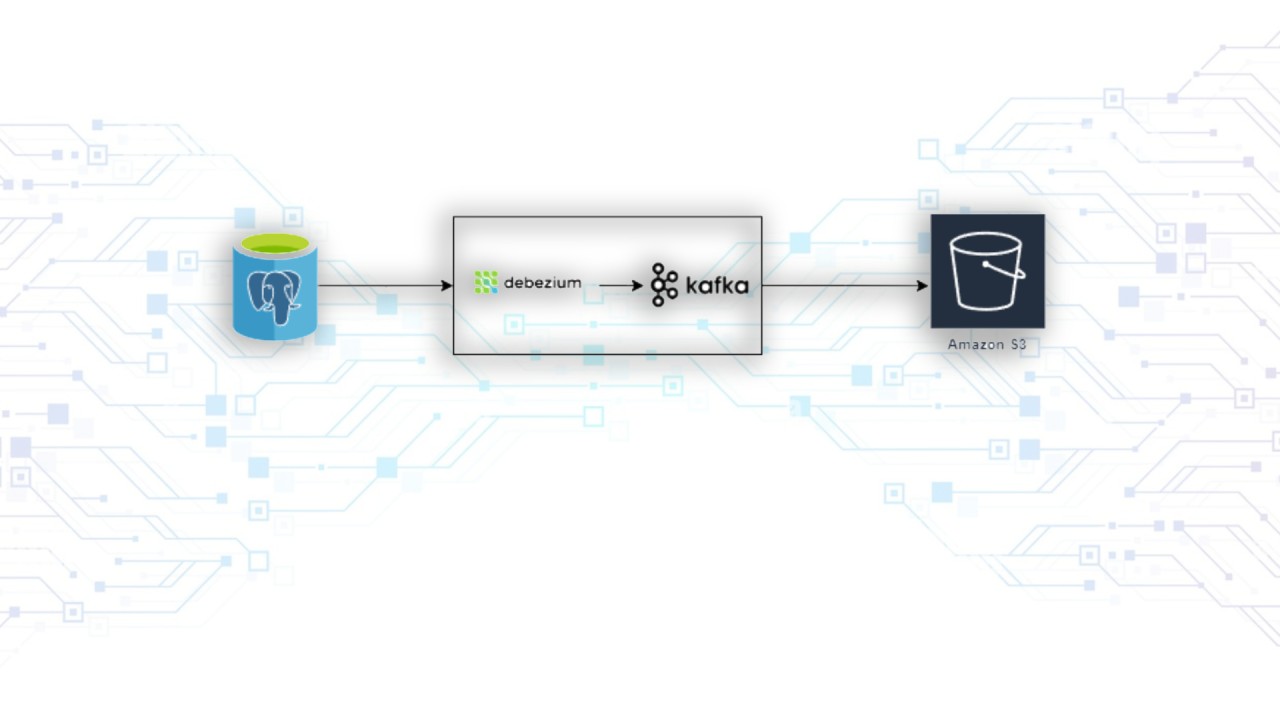
Published May 2, 2023

A step-by-step guide to capturing and streaming real-time changes from a Postgres database with Debezium, and persisting them in S3, all with the help of a Docker Compose file.
Overview
In this tutorial, we'll learn how to set up Change Data Capture (CDC) using Debezium on a PostgreSQL database using the provided Docker Compose file. We'll then set up an S3 sink connector to write the captured data to an S3 bucket.
Prerequisites
Before we get started, make sure you have the following software installed:
DockerDocker Compose.
Steps
Open a terminal and navigate to the directory containing the docker-compose.yml file.
version: '2.2'
services:
  kafka-cluster:
    container_name: kafka-cluster
    image: landoop/fast-data-dev:2.3.0
    environment:
      ADV_HOST: 127.0.0.1         # Change to 192.168.99.100 if using Docker Toolbox
      RUNTESTS: 0                 # Disable Running tests so the cluster starts faster
      CONNECTORS: debezium-postgres,s3
      S3_BUCKET_NAME: "<S3_BUCKET>"
      AWS_ACCESS_KEY_ID: "<AWS_ACCESS_KEY_ID>"
      AWS_SECRET_ACCESS_KEY: "<AWS_SECRET_ACCESS_KEY>"
      AWS_REGION: "us-west-2"
    ports:
      - 2181:2181                   # Zookeeper
      - 3030:3030                   # Landoop UI
      - 8081-8083:8081-8083         # REST Proxy, Schema Registry, Kafka Connect ports
      - 9581-9585:9581-9585         # JMX Ports
      - 9092:9092                   # Kafka Broker
    volumes:
      - ./target/plugin/:/connectors/
    links:
      - postgres
    depends_on:
      - postgres

  postgres:
    image: debezium/postgres:13
    ports:
      - 5432:5432
    environment:
      - POSTGRES_USER=postgres
      - POSTGRES_PASSWORD=<POSTGRES_PASSWORD>
      - POSTGRES_DB=postgres

  aws-s3:
    image: localstack/localstack:0.8.8
    container_name: aws-s3
    environment:
      SERVICES: s3
      HOSTNAME: aws-s3
      AWS_ACCESS_KEY_ID: "<AWS_ACCESS_KEY_ID>"
      AWS_SECRET_ACCESS_KEY: "<AWS_SECRET_ACCESS_KEY>"
      AWS_REGION: "us-west-2"
    ports:
      - "4572:4572"
      - "4576:4576"
      - "5000:5000"
Start the Docker containers by running the following command:
docker-compose up -d
This will start with three containers: Kafka-cluster , postgres , and aws-s3 . The Kafka-cluster container runs Kafka, Kafka Connect, and the Debezium PostgreSQL connector. The Postgres container runs a PostgreSQL database. The AWS-s3 container runs a mock AWS S3 service.Verify that the containers are running by visiting the Landoop UI at http://localhost:3030. You should see a dashboard with information about the Kafka cluster and the Debezium connectors. If you click on the Debezium Connectors tab, you should see the Debezium-postgres connector running.
Creating a PostgresConnector and S3 Sink Connector
Once the Docker Compose file is up and running, the next step is to create a connection to the Postgres database and set up a connector to stream the database changes to an S3 bucket using Landoop UI. Here are the steps to create the connectors:Open a web browser and go to http://localhost:3030/kafka-connect-ui/#/cluster/fast-data-dev.Click on the "New Connector" button to create a new connector.In the "New Connector" page, set the name of the connector as "PostgresConnector".In the "Configuration" tab, add the following configuration properties:
 connector.class=io.debezium.connector.postgresql.PostgresConnector
database.user=postgres
database.dbname=postgres
tasks.max=1
database.hostname=postgres
database.password=postgres
database.server.name=postgres
table.include.list=public.sales
database.port=5432
plugin.name=pgoutput
Click on "Create" to save the connector configuration.Repeat the same steps to create a new connector for the S3 sink.Set the name of the connector as "s3-sink-connector".In the "Configuration" tab, add the following configuration properties:
 connector.class=io.confluent.connect.s3.S3SinkConnector
s3.region=us-east-1
flush.size=1000
schema.compatibility=NONE
topics=postgres.public.sales
tasks.max=1
timezone=UTC
s3.part.size=5242880
locale=PL
format.class=io.confluent.connect.s3.format.json.JsonFormat
storage.class=io.confluent.connect.s3.storage.S3Storage
s3.bucket.name="<S3_BUCKET>"
rotate.schedule.interval.ms=10000
Make sure to change the S3 bucket name to the name of the bucket you want to use.
Click on "Create" to save the connector configuration.
hashtag#cdc hashtag#debezium hashtag#postgresql hashtag#kafka hashtag#s3 hashtag#dataintegration hashtag#dataengineering hashtag#docker hashtag#landloop hashtag#sql hashtag#datastreaming